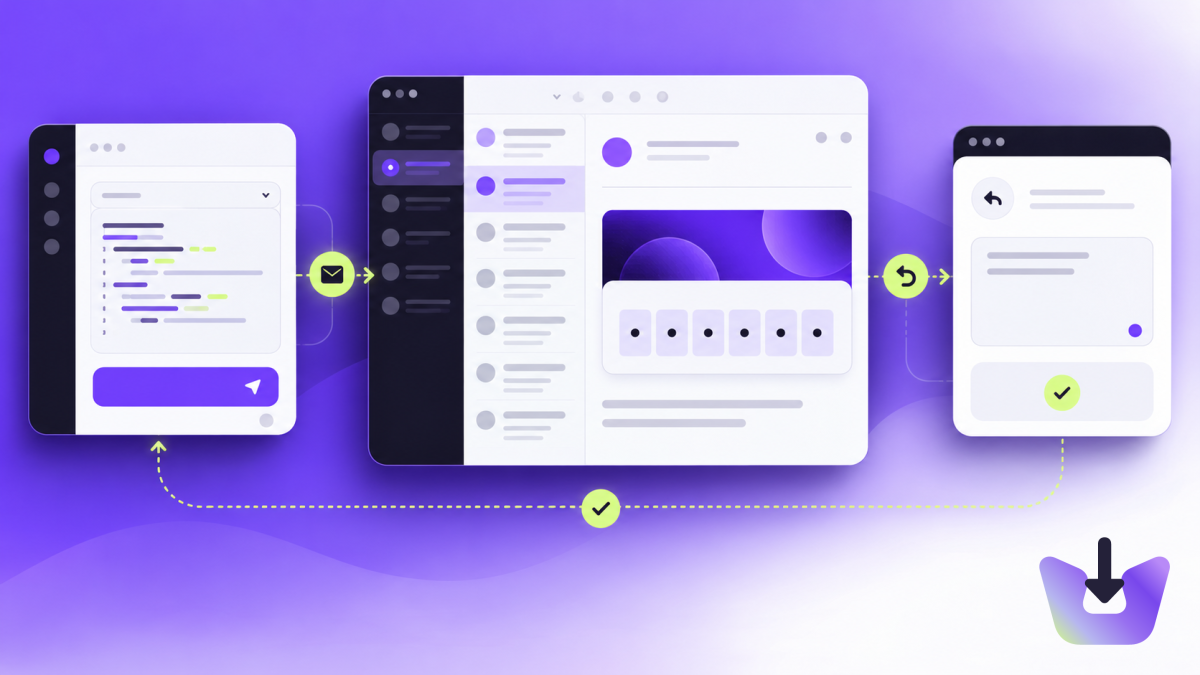
Follow the user’s journey
Your signup form works. Your application says “Email sent.” But can a new user actually verify their account?
Email is part of the product journey. A missing message, broken verification link or expired reset token can stop someone before they ever use your application. Test the journey your user takes: request the email, receive it, open it and complete the action.
1. Start with a dedicated test inbox
Use a separate inbox for the account you are testing. This makes it easier to distinguish the message you just requested from earlier emails. For automated tests, isolated inboxes also help prevent parallel runs from reading each other’s messages.
MailSlurp’s testing guide identifies shared inboxes, fixed waiting periods and weak message matching as common sources of unreliable email tests. Read the MailSlurp guide.
- Create a test inbox and copy its address.
- Open your application’s signup page and register using that address.
- Return to the inbox and inspect the new message.
- Follow the verification link and confirm that your application marks the account as verified.
Use test accounts and test data throughout the process. If you use InboxIt’s dashboard wait feature, start the wait before triggering the email: it looks for new messages.
2. Check the message, not just its subject
A subject such as “Confirm your email” does not tell you whether the message is usable. Check the message from the recipient’s perspective:
- The sender name is recognizable.
- The message explains why it arrived.
- The body renders correctly and the main action is easy to find.
- The verification button opens the expected application domain.
- The link works in a fresh browser session.
- The resulting page confirms success or explains what went wrong.
Also inspect the plain-text version if your application sends one. Users should understand the message without its visual styling.
3. Test the complete password-reset journey
Start with an existing test account. Request a reset, open the email and choose a new password. Confirm that the new password works and the old password no longer does.
Then test the failure cases:
- Reused link: after a successful reset, the same link must not allow another reset.
- Expired link: the application rejects it and explains how to request a new one.
- Modified token: the application rejects the request.
- Unknown email: the response does not reveal whether an account exists.
OWASP recommends single-use, expiring reset tokens, consistent responses for existing and nonexistent accounts, and protection against excessive reset requests. These are application behaviours to verify separately from email arrival. Read OWASP’s password-reset guidance.
4. Make automated tests wait for evidence
A test that sleeps for a fixed number of seconds can fail when email arrives more slowly than expected, or waste time when it arrives immediately. Instead, wait for a message matching the test’s recipient and expected content, with a clear timeout. Then assert the application’s final state after using the link.
Playwright supports retrying assertions for browser state and polling for asynchronous conditions. Your email retrieval code still needs to identify the correct message; browser assertions alone do not check a mailbox. See Playwright’s assertion documentation.
Keep failure reports useful without exposing credentials: record which stage failed and when, but redact reset tokens and verification links from shared logs.
Ready to automate? Follow our Playwright email-verification tutorial for an InboxIt integration example.
5. Know what a passing test proves
Receiving an email in a test inbox demonstrates that the tested route worked. It does not establish that every customer will receive the message in their primary inbox.
- Functional: did the correct message arrive, and did its action work?
- Visual: is the message readable in the email clients your customers use?
- Delivery: what happens when you send to representative real mailbox providers?
Start with one successful signup and one successful password reset. Add the failure cases before making them part of your release checks.
Try the flow with InboxIt
Create an inbox, use its address in your application and follow the journey your users will take.
Open the InboxIt email-testing tool →
For the dashboard and API workflow, see the email-testing documentation.
Sources and further reading
This guide draws on the following technical references, checked on 26 October 2026:
- MailSlurp: Reliable email testing in CI — inbox isolation, waiting and matching messages.
- Playwright: Assertions — retrying checks and polling.
- OWASP: Forgot Password Cheat Sheet — reset-token handling and account-recovery safeguards.